IGSNs in StraboSpot
StraboSpot can register an IGSN for any of your samples at SESAR (the System for Earth Sample Registration), keep the SESAR record in step with your sample, and bring samples you already registered at SESAR into StraboSamples. This guide walks through every part of it, with best practices at the end.
The screenshots in this guide were taken on SESAR's test site, so some of them show a yellow SESAR test badge. You will not see that badge on your own samples.
1. What an IGSN is
An IGSN (International Generic Sample Number) is a permanent, citable identifier for a physical
sample: a rock, a core, a thin section, a mineral separate. Each IGSN is also a DOI, so it looks like
10.58052/IEJMA0010 and resolves on the web to a page describing the sample. You can cite
it in papers and data sets, and anyone who reads it can find the sample's record.
SESAR issues IGSNs. Every IGSN you register starts with your SESAR code, a
five-character prefix such as IEJMA that belongs to you.
IGSNs are public and permanent. SESAR publishes each sample's name, location, description, collection date and purpose with its IGSN. A registered IGSN cannot be deleted; SESAR staff can only deactivate it. Register a sample when its details are right and you are ready for them to be public.
StraboSpot registers IGSNs in your name, under your own SESAR account. The records are yours at SESAR, exactly as if you had made them there.
2. Connect your SESAR account (once)
Everything starts on the IGSNs page. Open My Samples and click the IGSNs button in the toolbar.
The panel at the top of the IGSNs page walks you through a one-time setup. Its steps are shown across the top of the panel: Sign in with ORCID › SESAR account › API access › SESAR code › Ready. You only do the steps you have not done before.
- Sign in with ORCID. Click Connect with ORCID. A small ORCID window opens; sign in and it closes by itself. SESAR finds your account through your ORCID iD, so you need an ORCID iD.
- SESAR account. If SESAR has no account for your ORCID iD yet, the panel says so. Open SESAR, click Log in and sign in with the same ORCID iD; your first sign-in creates the account. Come back and click Check again.
- API access. SESAR only lets approved accounts use its API, which is how StraboSpot registers samples for you. The panel fills in a request for you (name, email, institution, role); click Send request to SESAR. SESAR staff approve each request by hand, so allow a day or more. You do not need to keep the page open: it checks again whenever you come back. No answer after a few days? Write to info@geosamples.org.
- SESAR code. Choose your SESAR code:
IEplus three letters or digits of your choice, often your initials. Codes are unique across SESAR, so if yours is taken, try another. If you already made one at SESAR, click Check again instead. - Ready. The panel shows Connected to SESAR with your name and code.
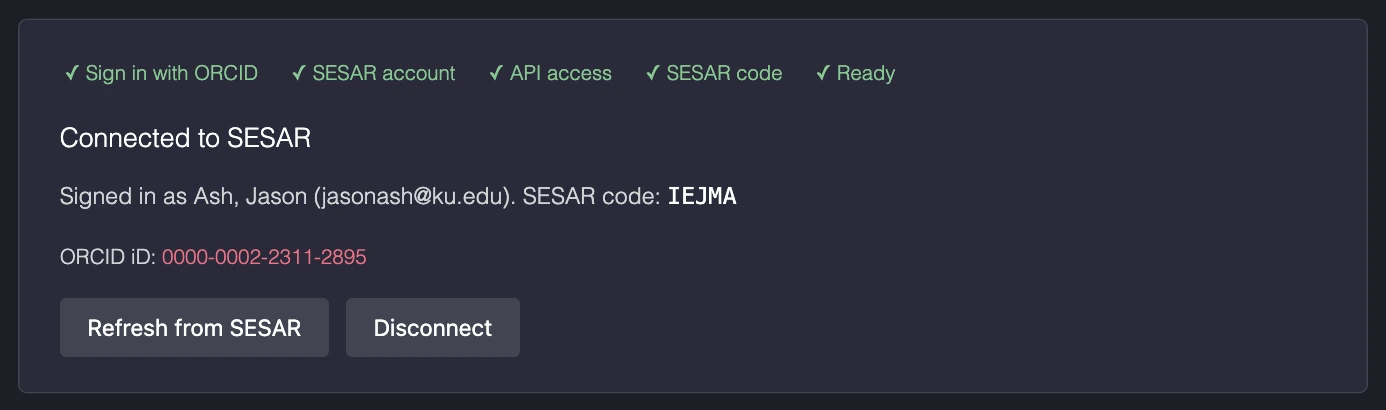
Refresh from SESAR re-reads your SESAR account (for example after you add a second SESAR code at SESAR). Disconnect removes StraboSpot's access to your SESAR account; you can connect again at any time, and nothing at SESAR changes.
If your connection expires, the panel asks you to Reconnect with ORCID. If you click a SESAR action anywhere before connecting, StraboSpot offers Connect SESAR first; after connecting (even in another tab), just click the action again.
3. The IGSNs page
The IGSNs page has two tabs:
- My samples: every sample you own in StraboSamples, with its IGSN (if any) and how it stands with SESAR. This is where you register, send and pull.
- Import from SESAR: samples that exist at SESAR but not yet in StraboSamples. See Import samples from SESAR.
The collapsible What the buttons and IGSN states mean box on the page is a quick reminder of everything below.
Finding samples
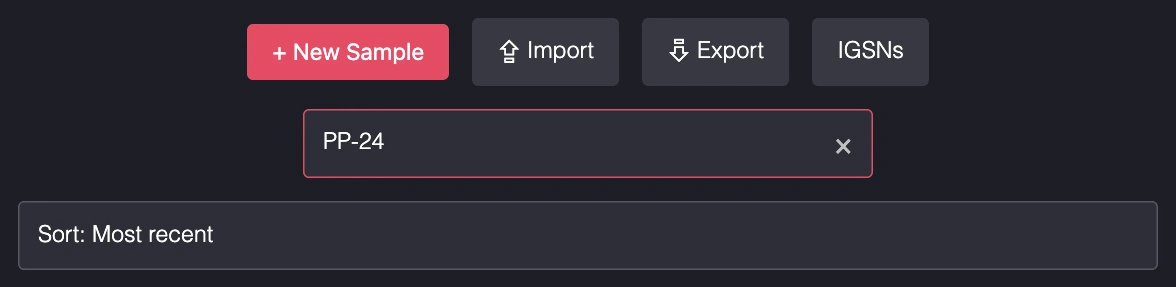
- Search matches a sample's name, ID or IGSN.
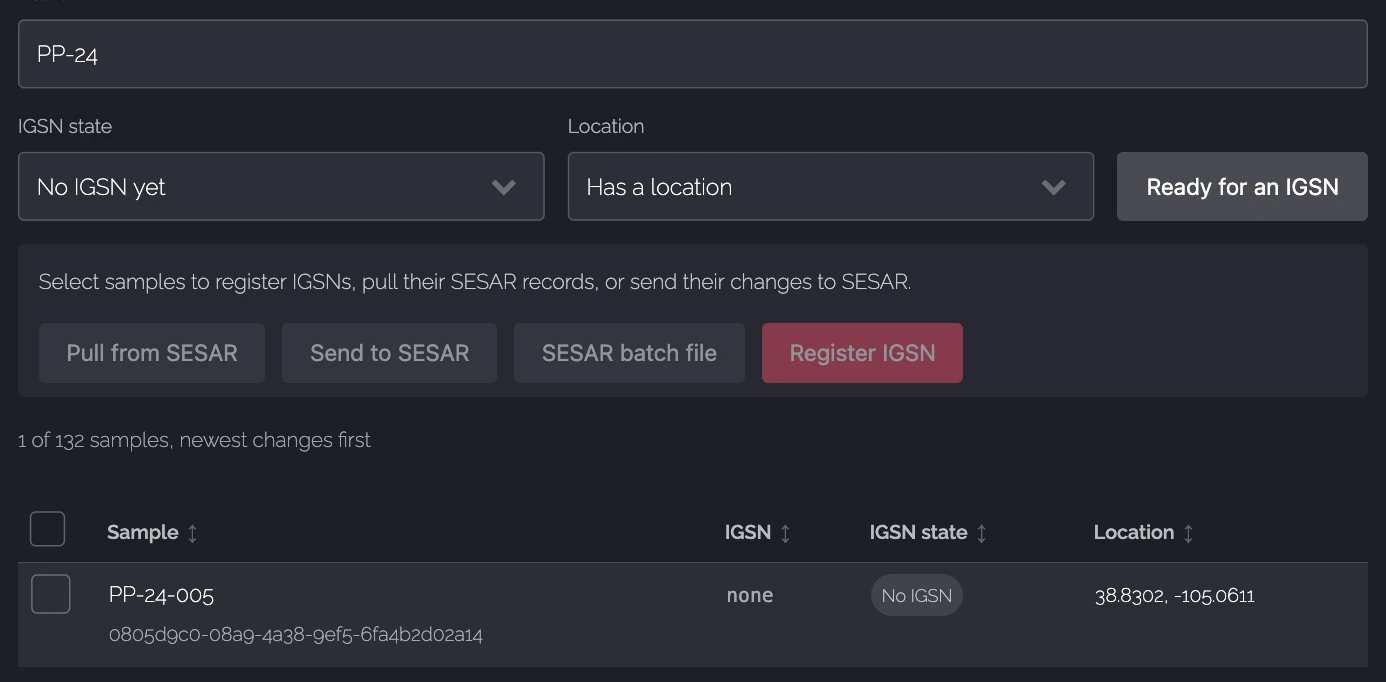
- IGSN state narrows the list to one state, such as No IGSN yet or Changed since last sent to SESAR.
- Location shows only samples that have, or are missing, a location.
- Ready for an IGSN is a shortcut for "no IGSN yet and has a location": the samples you can register right now.
- Click a column heading to sort by it; click again to reverse.
Acting on samples
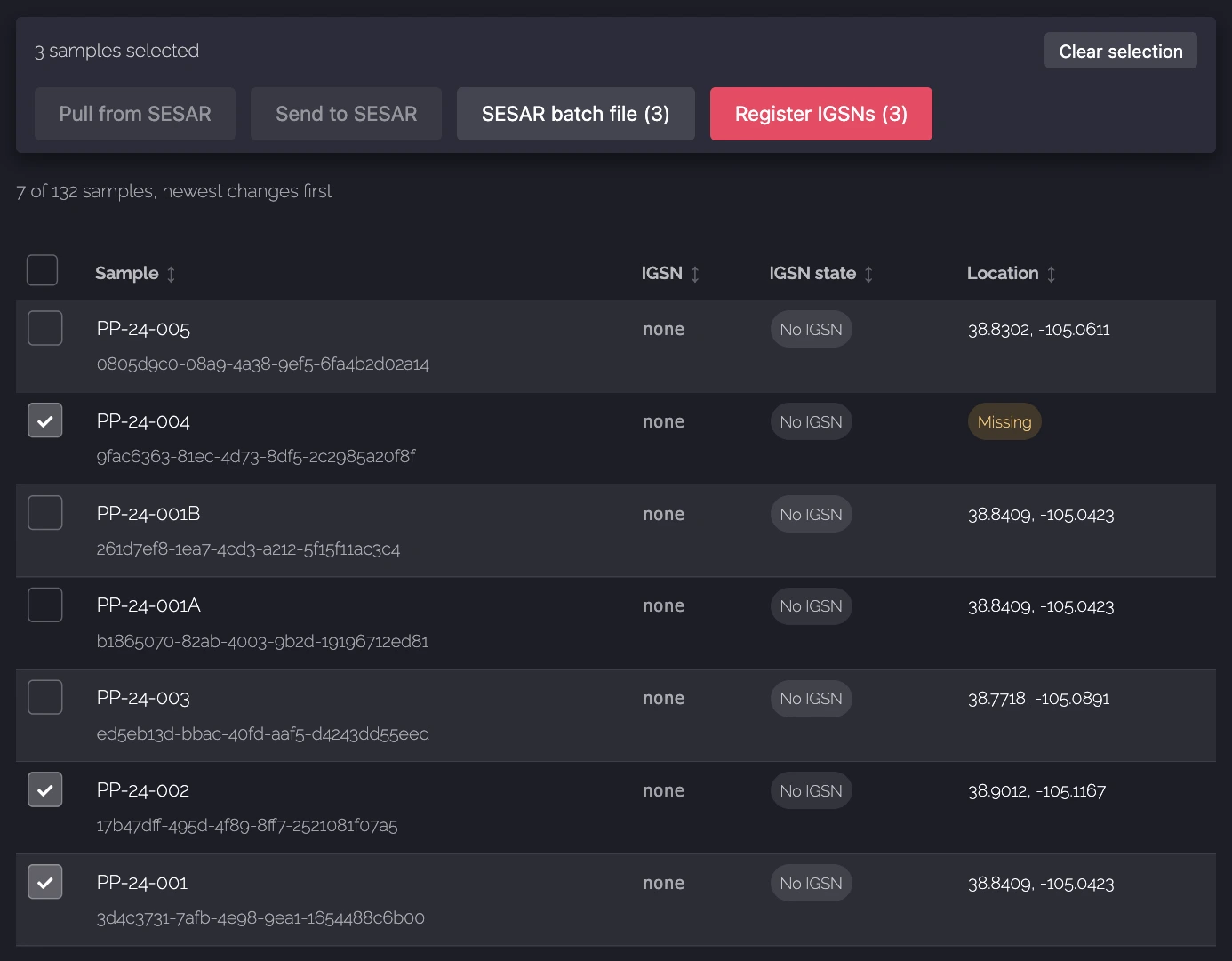
Select samples, then pick an action in the bar above the list. Each button shows how many of the selected samples it applies to, and is greyed out when none do. Once you select something, the bar stays pinned under the site menu while you scroll. Most actions take up to 100 samples at a time.
4. Register IGSNs
You can register from two places:
- One sample: open the sample's page and click Register IGSN.
- Many samples: on the IGSNs page, select samples and click Register IGSNs.

Either way, a review opens first. Nothing is sent to SESAR until you click the Register button at the bottom of the review.
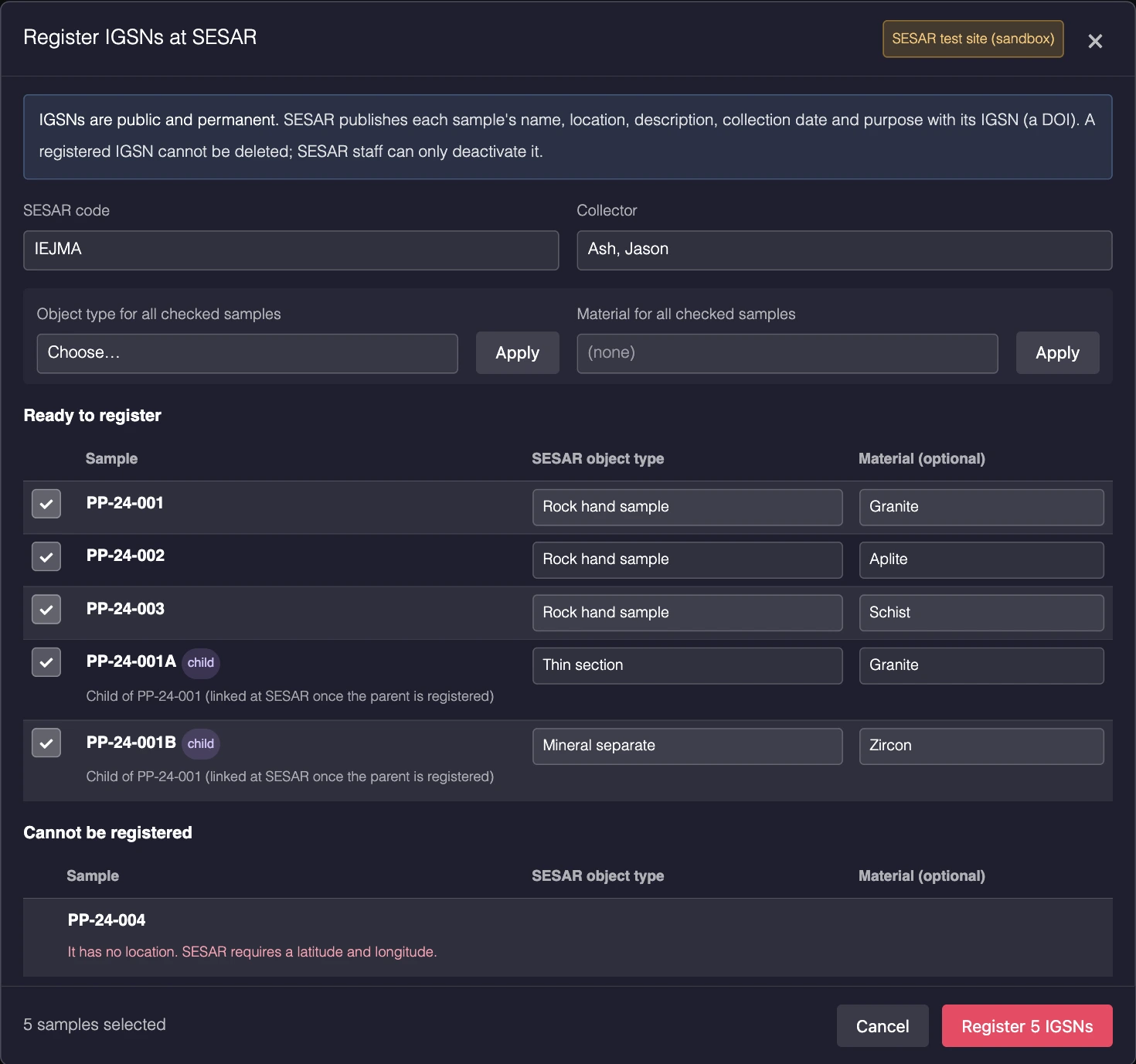
What the review asks
- SESAR code: which of your codes the new IGSNs start with (most people have one).
- Collector: filled in with your name. Change it if someone else collected the samples.
- SESAR object type (required, per sample): what kind of object it is, from SESAR's list, for example Rock hand sample, Thin section, Core or Mineral separate. StraboSpot suggests one; check it.
- Material (optional, per sample): start typing and pick from SESAR's list, for example Granite or Zircon. Leave it blank if nothing fits; SESAR only accepts names from its list.
- With several samples, the for all checked samples boxes let you set the object type or material for every selected row at once.
The three groups
- Ready to register: selected, and will be registered.
- Needs your OK: the sample's IGSN field already holds something that is not a registered IGSN (a placeholder, a typo, or an IGSN that SESAR deactivated). These start unselected. Select one to register a real IGSN in its place; the old value is kept in the sample's history.
- Cannot be registered, with the reason. The usual ones: the sample has no location (SESAR requires a latitude and longitude) or no name, or it already has a SESAR IGSN (use Pull from SESAR to link that one instead).
Parents and children
If a sample has children (splits, thin sections, separates) or a parent without an IGSN, the review adds them for you, tagged parent or child. Deselect any you do not want yet. Parents are always registered first, and each child's SESAR record is linked to its parent's IGSN. A child is never registered without its parent: if the parent fails, the child is skipped so it does not lose its parent link.
Running it
Click Register. Progress shows sample by sample; keep the window open until it finishes. Stop finishes the sample in progress and stops there. At the end you see each new IGSN and a summary.
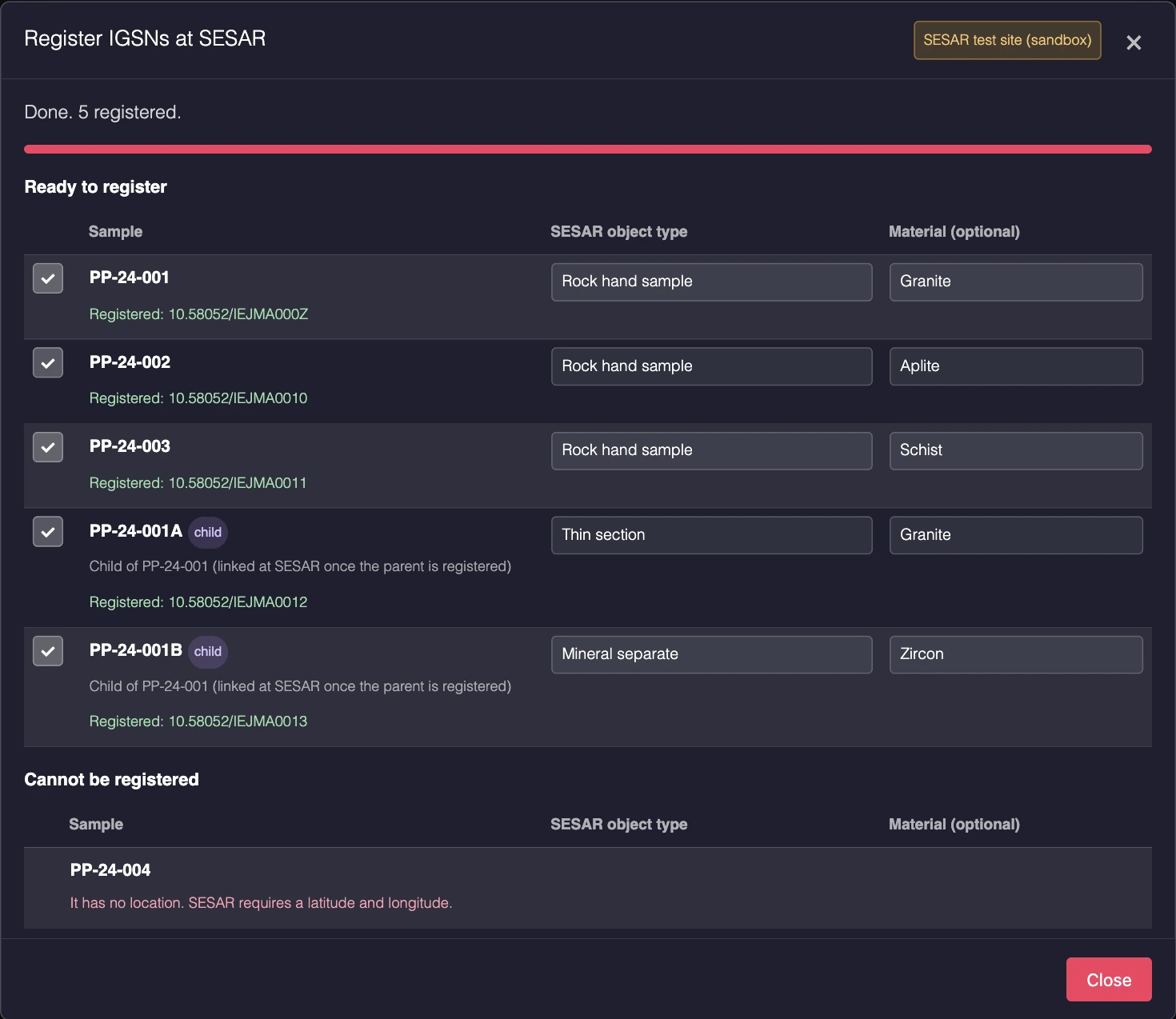
If SESAR does not answer, simply run the registration again: StraboSpot checks SESAR first, so a sample is never registered twice.
5. After registering
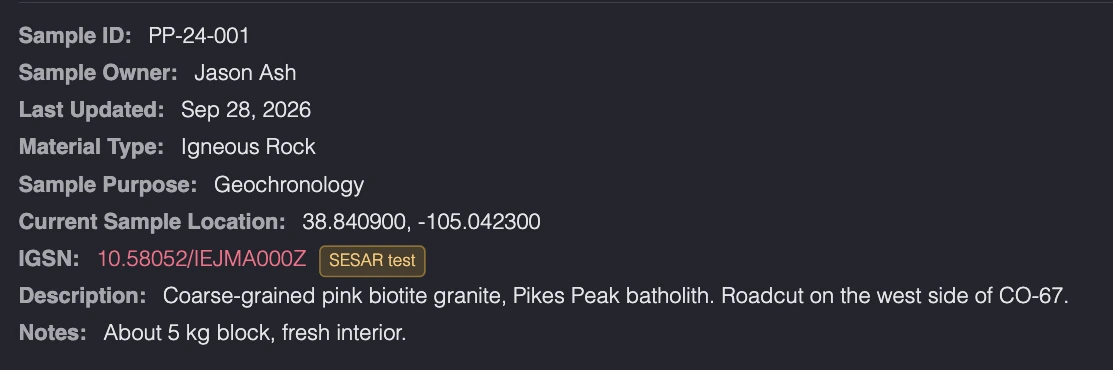
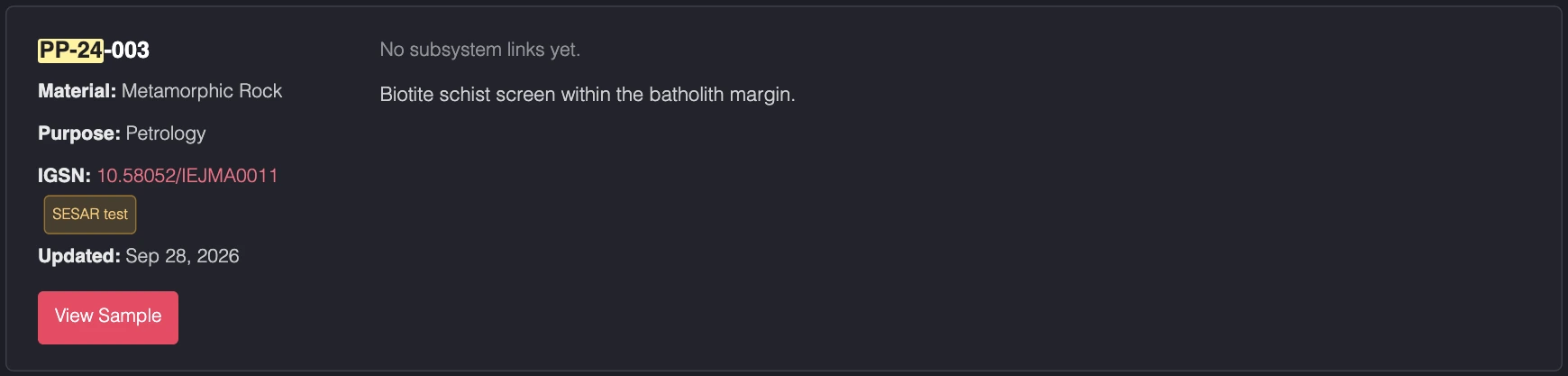
The new IGSN is written into the sample's IGSN field (and into the StraboField spot, for samples that came from StraboField). On the sample's page the IGSN becomes a link to its SESAR page.
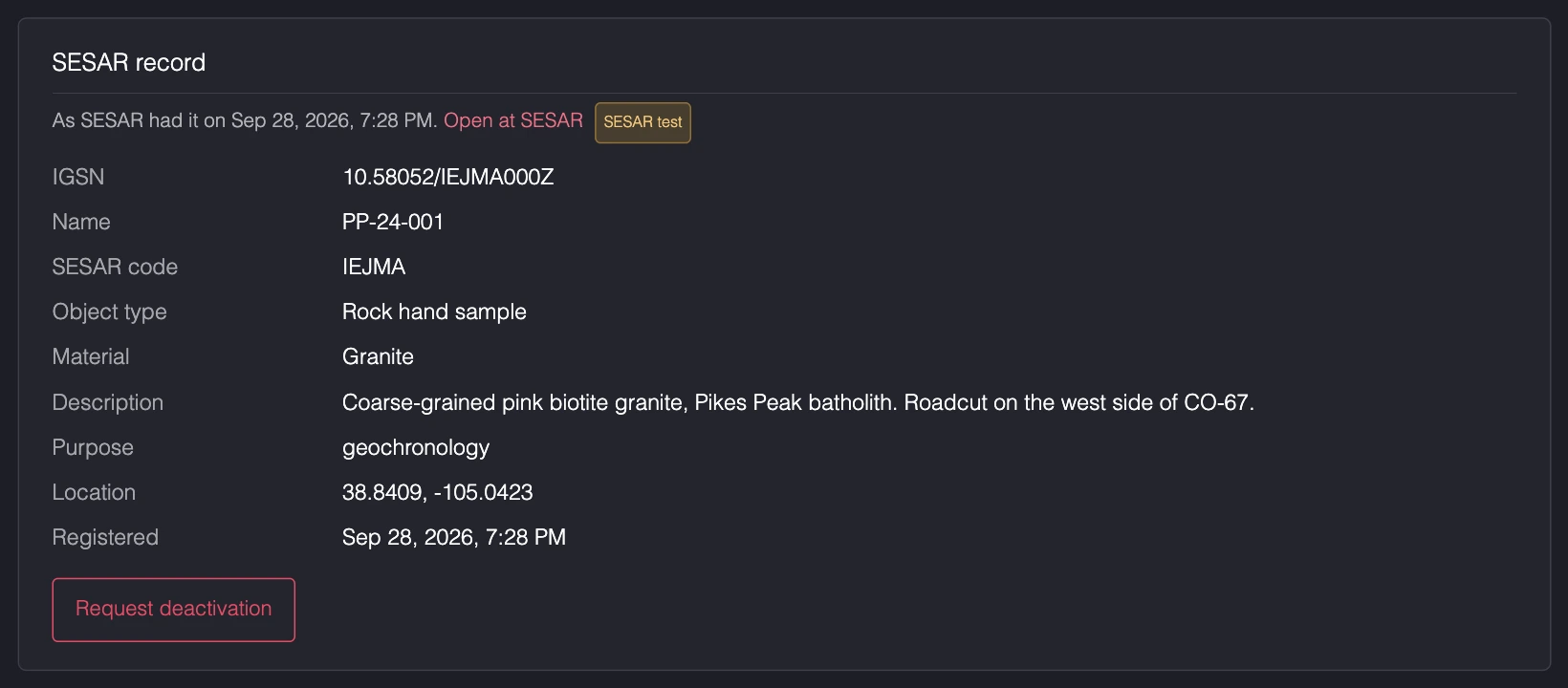
A SESAR record card also appears on the sample's page. It shows the record as SESAR had it the last time StraboSpot read it, with an Open at SESAR link.
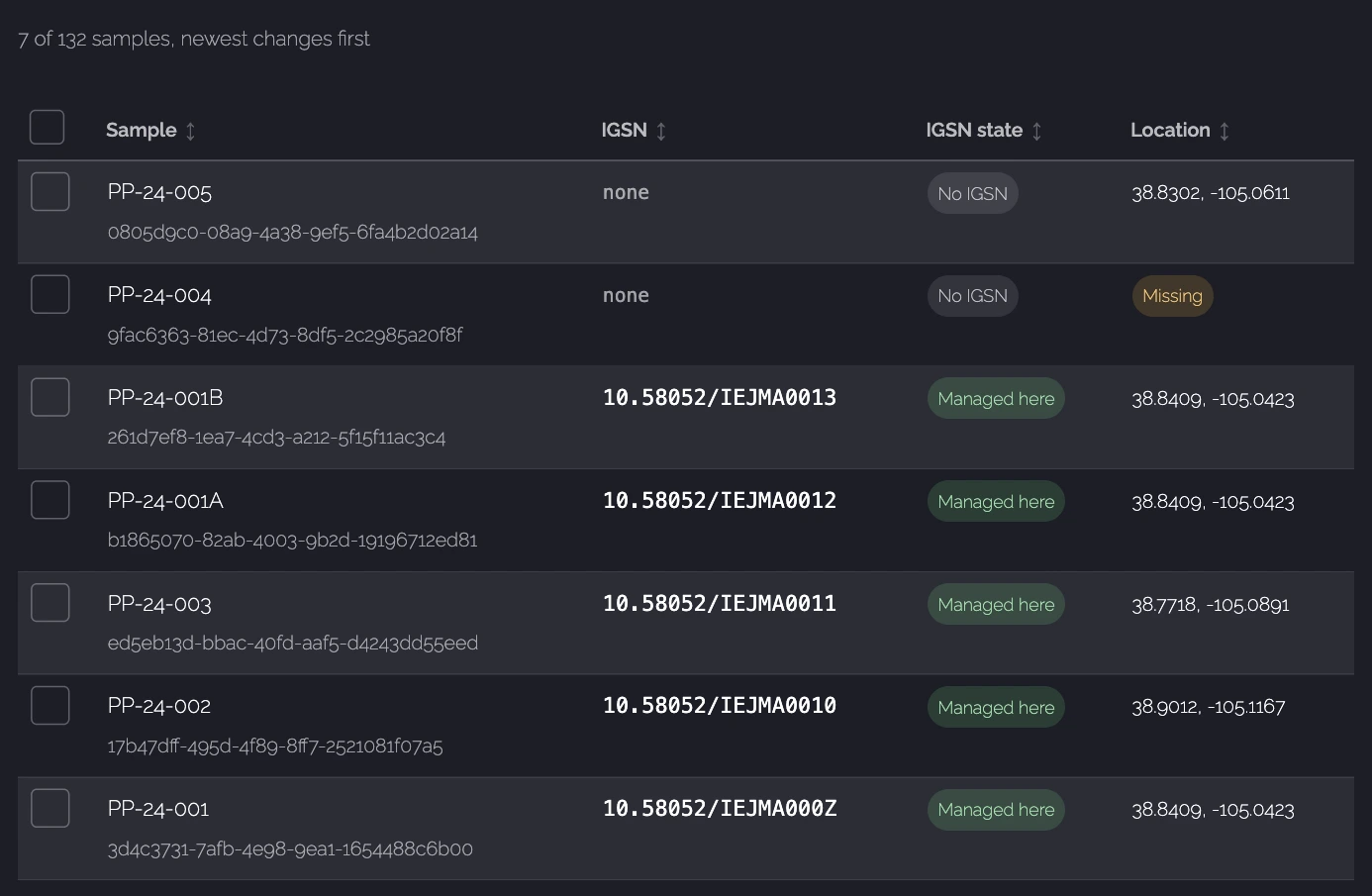
On the IGSNs page, the sample's state is now Managed here: StraboSpot can keep its SESAR record up to date. My Samples also shows the IGSN on the sample's card.
6. Send your edits to SESAR
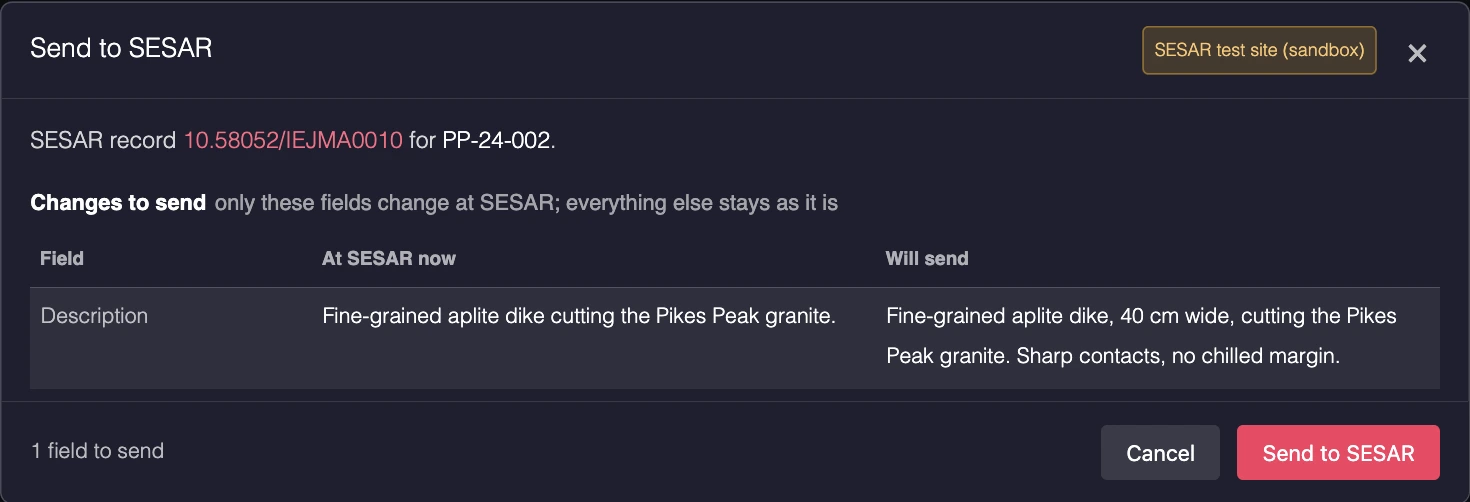
When you edit a registered sample in StraboSamples (its name, description, location, purpose, collection date or parent), SESAR does not change by itself. StraboSpot notices the difference and tells you. Nothing is sent until you choose to.

Click Send to SESAR (on the sample's page, or for many samples at once on the IGSNs page, where changed samples carry a Changed since sent tag). The review shows exactly which fields will change at SESAR; everything else stays as it is.
If the record was also changed at SESAR
Before sending, StraboSpot reads the record at SESAR. If someone changed a field there since StraboSpot last read it, that field is marked changed at SESAR and sending is blocked, so their edit is not overwritten. Use Pull from SESAR first, then send.
What is never sent
- Empty fields. A value you cleared in StraboSamples is never cleared at SESAR.
- The object type, material, SESAR code and collectors. Change those at SESAR if needed.
- Anything, automatically. Sending only ever happens when you click Send.
7. Pull from SESAR
Pull from SESAR copies values from a sample's SESAR record into the sample. Use it when:
- you (or a colleague) edited the record at SESAR, or
- a sample's IGSN was typed in by hand, or came from elsewhere. Pulling links the IGSN, so StraboSpot can manage it from then on.
The review lists the sample's values next to SESAR's. Select the SESAR values you want:
- fills an empty field: selected for you.
- replaces: SESAR's value differs from yours. Unselected; select it only if SESAR is right.
- same: nothing to do.
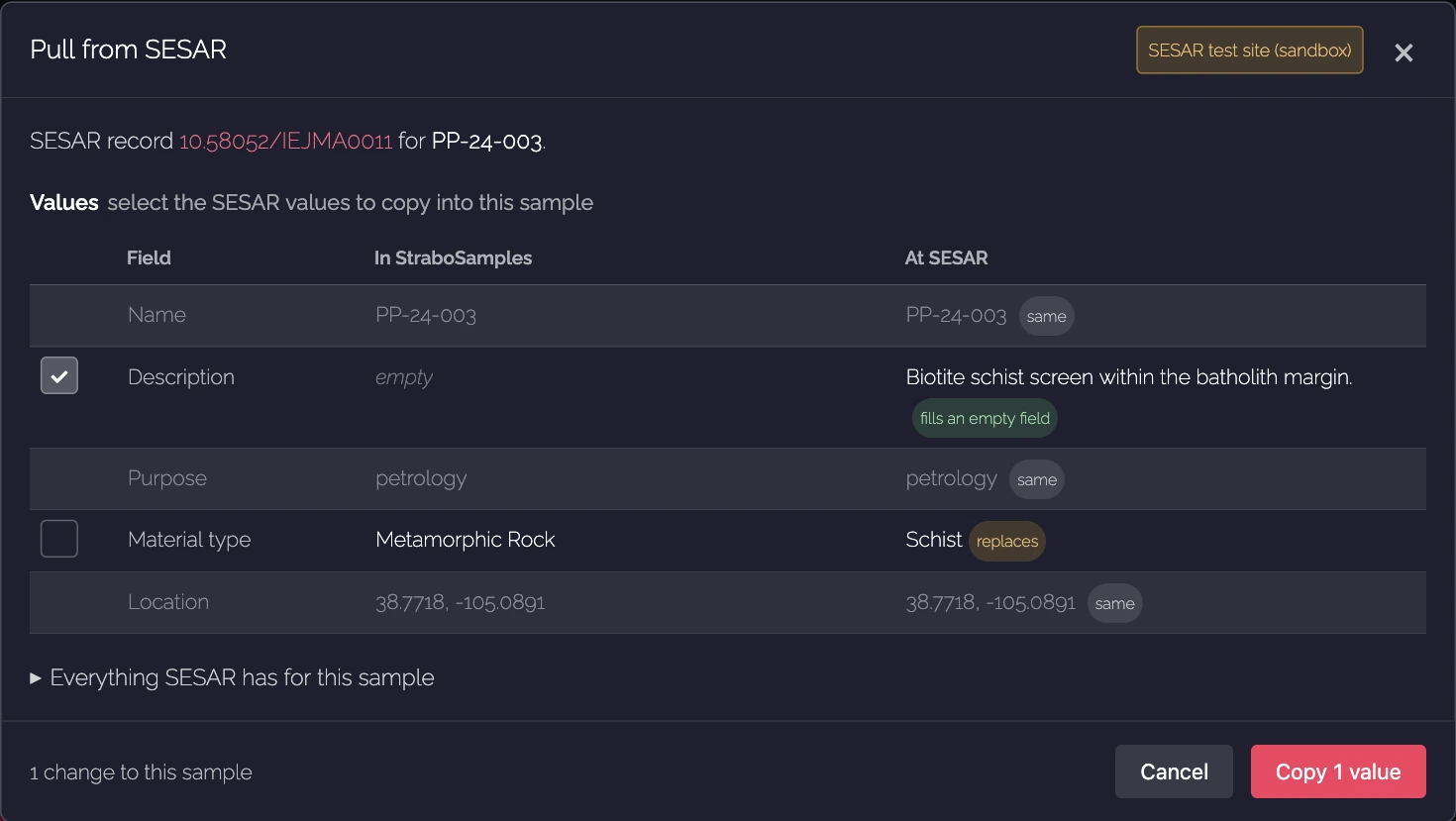
Locations less than 10 m apart count as the same. Everything SESAR has for this sample expands to show the full record.
Samples from StraboField: the StraboField app is in charge of their location, material and purpose, so a pull never changes those. Any differences are listed instead, and the sample shows Differs from Field on the IGSNs page. Fix whichever side is wrong.
On the IGSNs page, Pull from SESAR works on many samples at once: it fills empty fields only, unless you select Also replace values that differ from SESAR.
Records owned by another SESAR account
You can link a colleague's public IGSN to your sample. It is linked read-only: you can pull from it, but not send changes to it or ask for it to be deactivated.
Unlink from SESAR
An IGSN can be linked to only one of your samples. If you linked it to the wrong one with a pull, click Unlink from SESAR on that sample's SESAR record card, then pull on the right sample. Unlinking changes nothing at SESAR or in the sample's values. (An IGSN registered from a sample through StraboSpot stays with that sample and cannot be unlinked.)
8. Import samples from SESAR
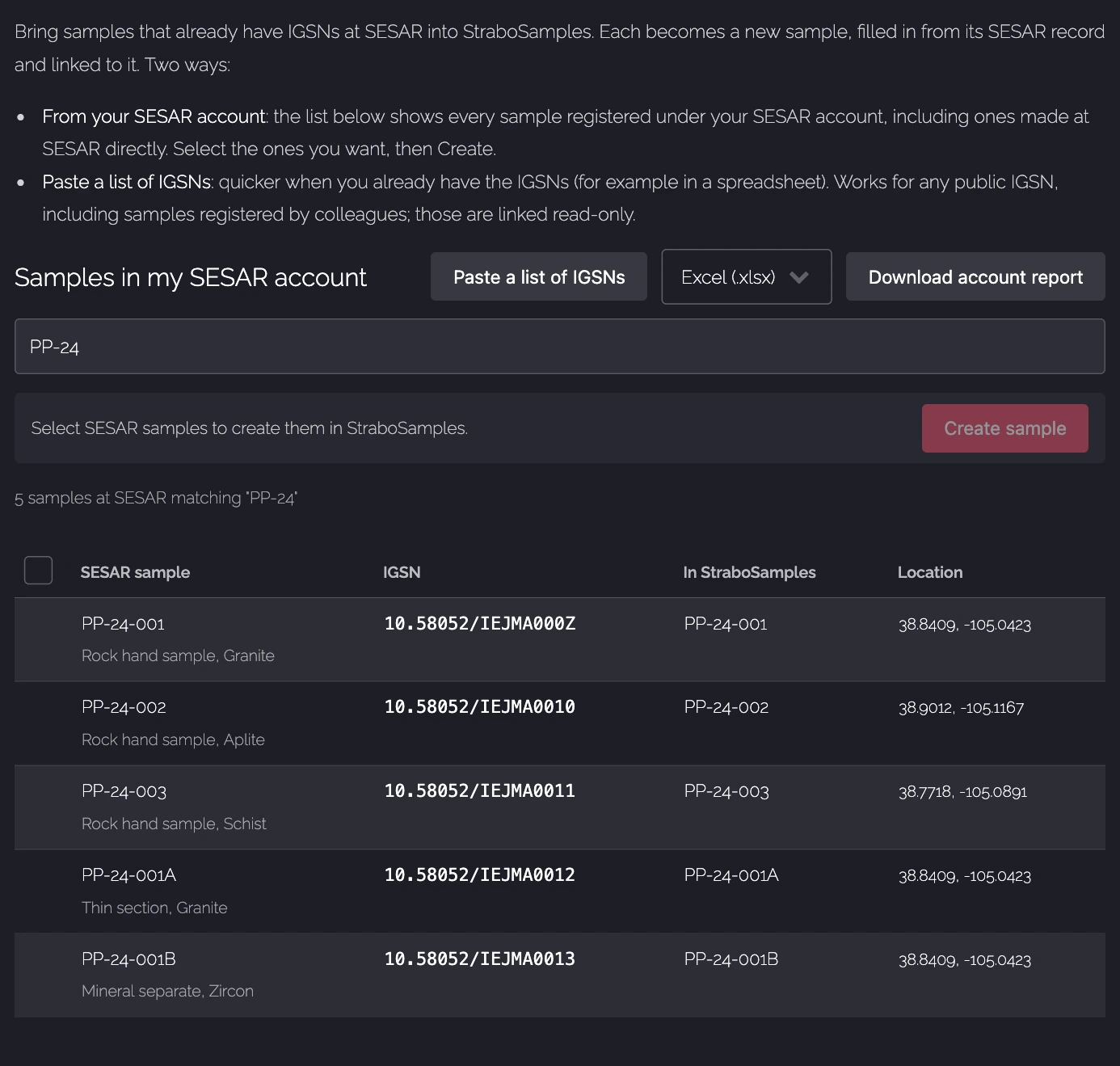
If you already have samples at SESAR (registered at SESAR directly, or long ago), the Import from SESAR tab brings them into StraboSamples. Each one becomes a new sample, filled in from its SESAR record (name, description, location, material, purpose) and linked to it.
From your SESAR account
The tab lists every sample in your SESAR account. Type a name or IGSN in the search box and press Enter to narrow the list. Samples already in StraboSamples show which sample holds them; select the others and click Create samples. Parents are created before their children and linked to them.
Paste a list of IGSNs
Quicker when you already have the IGSNs, for example in a spreadsheet. Click Paste a list of IGSNs, paste them one per line (commas and spaces work too), and click Check with SESAR. You see what will be created before anything happens. This works for any public IGSN, including samples registered by colleagues; those are linked read-only.
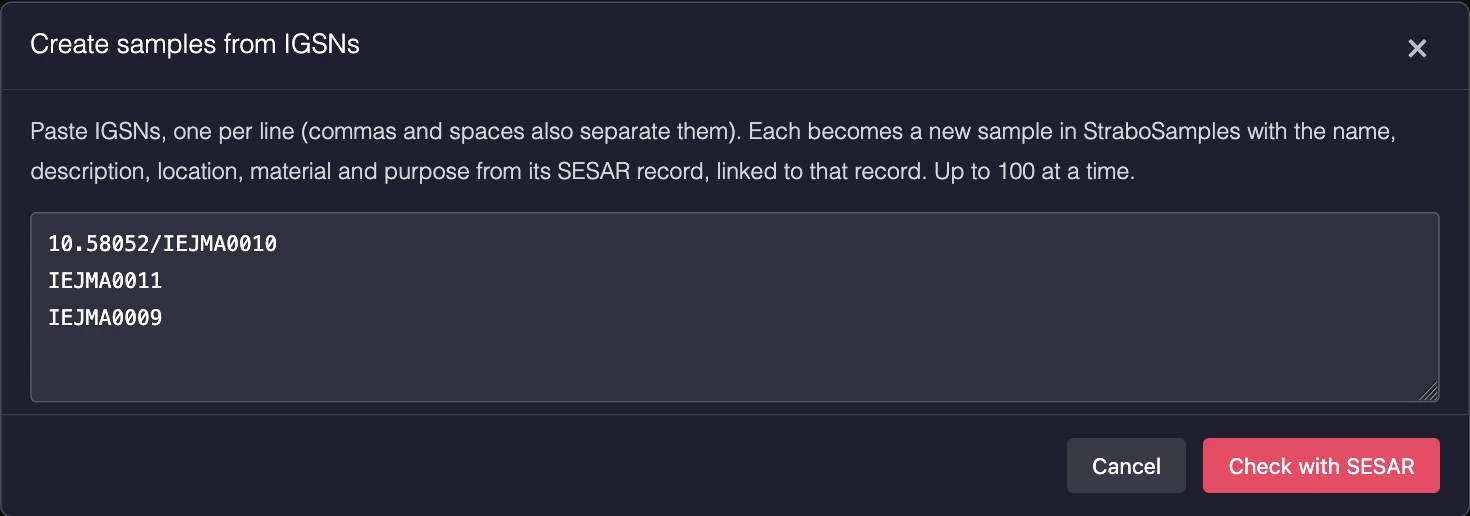
9. SESAR batch file
Some labs register through SESAR's own batch upload. SESAR batch file fills your samples into a SESAR spreadsheet template for you, so you do not retype them.
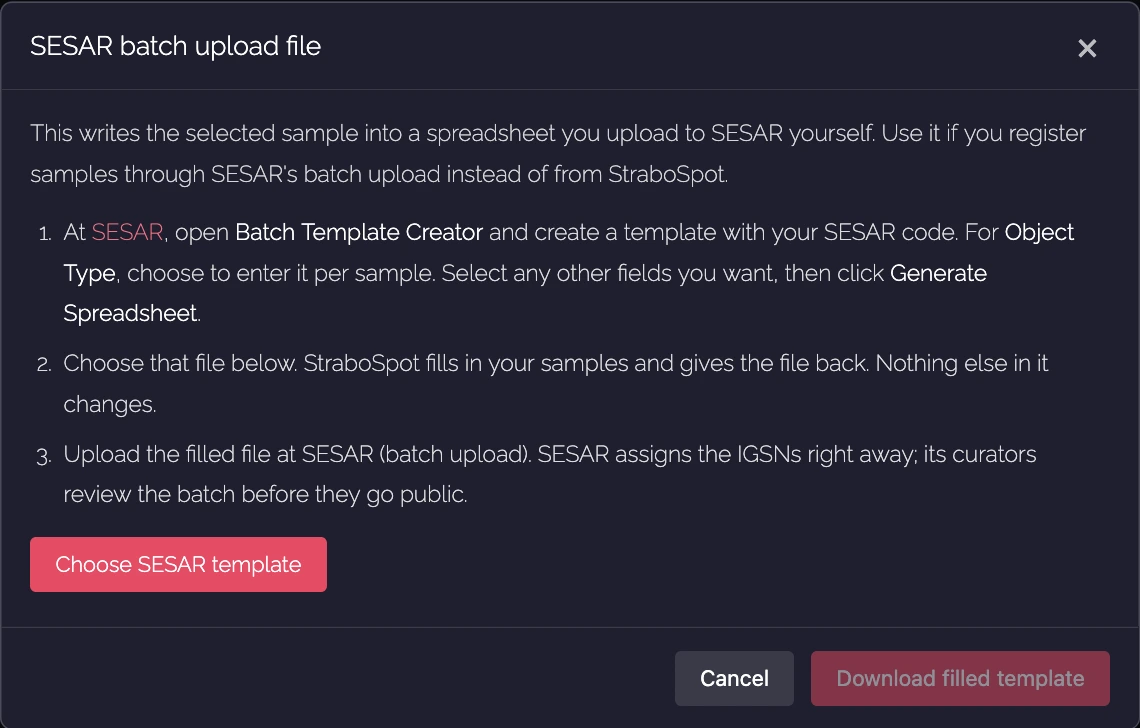
- At SESAR, open the Batch Template Creator, make a template with your SESAR code, choose to enter Object Type per sample, and click Generate Spreadsheet.
- On the IGSNs page, select the samples, click SESAR batch file, and choose that template. StraboSpot fills in the samples and gives you the file back (nothing else in it changes). Up to 4,999 samples per file.
- Upload the filled file at SESAR. SESAR assigns the IGSNs right away; its curators review the batch before the records go public.
- Back on the IGSNs page, click Find my batch IGSNs. StraboSpot finds the new IGSNs (each row carries "StraboSpot" and the sample's ID in SESAR's Other Name(s) column) and adds each one to its sample. Drafts still waiting for review start unselected.
This route does not need a SESAR connection until the last step. Without one, you can add the IGSNs with a spreadsheet Import on My Samples instead.
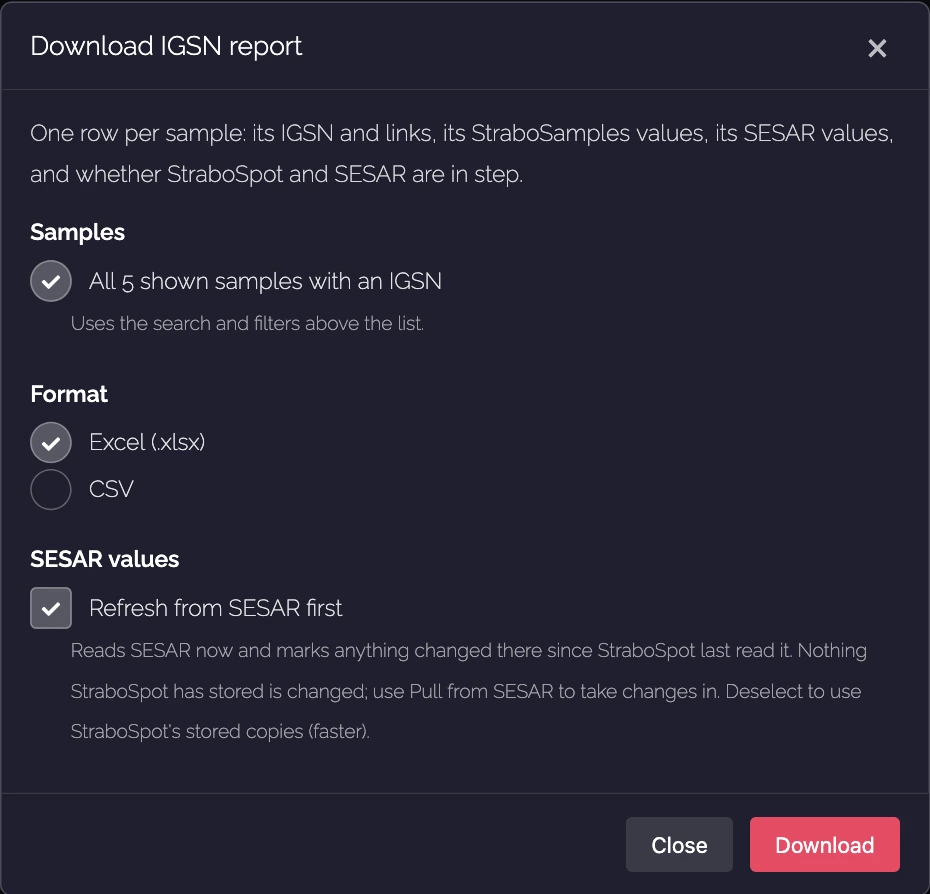
10. Reports
- Download report (My samples tab): an Excel or CSV file with one row per sample: its IGSN and links, its StraboSamples values, its SESAR values, and whether the two are in step. It covers the selected samples, or every sample with an IGSN that the list currently shows. Refresh from SESAR first reads SESAR now and flags anything changed there; it never changes your samples.
- Download account report (Import from SESAR tab): every sample in your SESAR account, drafts included, and whether each one is in StraboSamples.
11. Retire an IGSN (deactivation)
An IGSN is never deleted. If one should not exist (a test, a duplicate, a sample that does not exist), you can ask SESAR to deactivate it. A deactivated IGSN still resolves, to a page saying it was deactivated, and it leaves SESAR's catalog search.
- Open the sample's page and click Request deactivation on its SESAR record card.
- Choose a reason and type the IGSN to confirm, then click Request deactivation.
- A SESAR curator reviews the request and emails you the decision. Meanwhile the sample shows Deactivation requested and changes are not sent to it. Check with SESAR now shows the decision; StraboSpot also checks every night.
- Once approved, the IGSN is removed from the sample (it stays in the sample's history) and you may register a new one. If SESAR declines, the IGSN stays active.
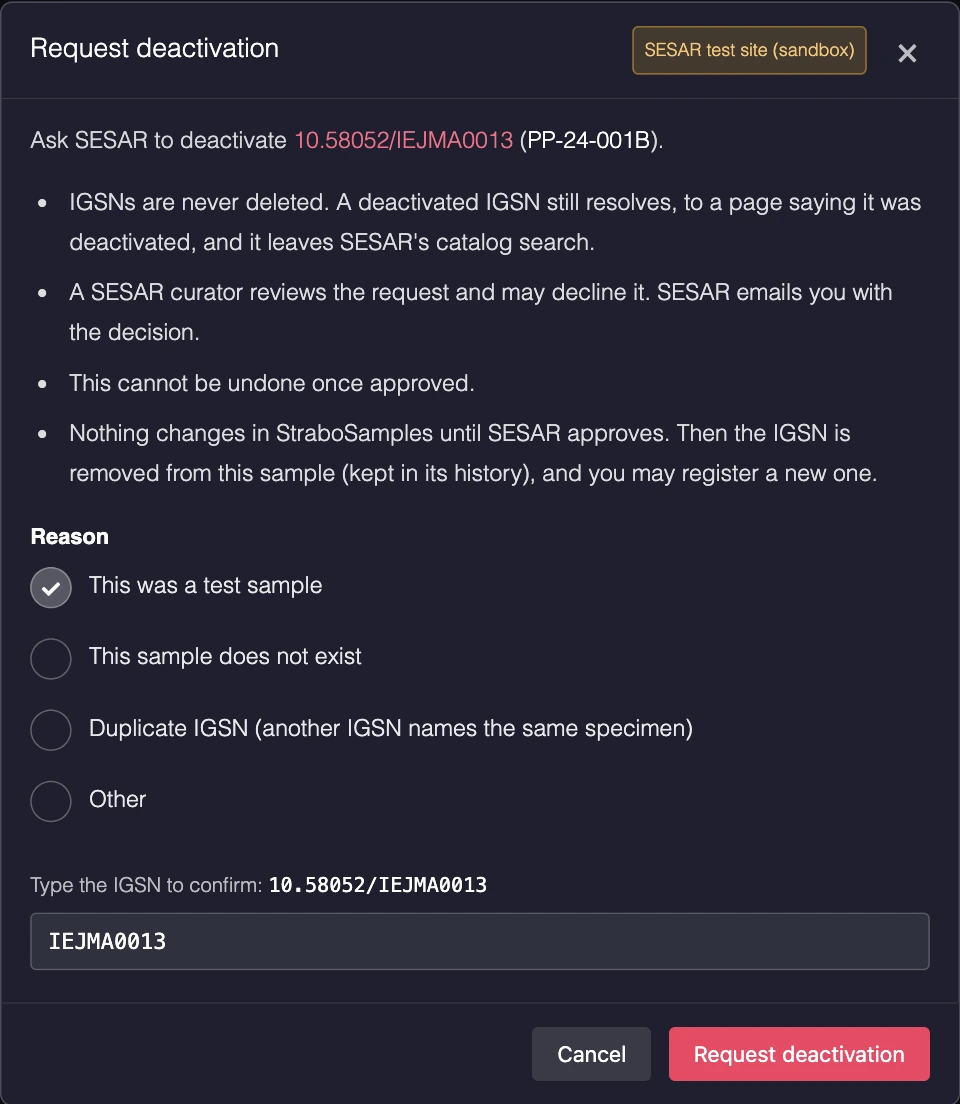
If you already asked SESAR directly, the dialog says SESAR is not taking a new request and offers Show as requested, so StraboSpot stops sending changes; you can take that back with Show as active again.
Deleted samples: if a sample that has an IGSN is deleted (for example, removed from its StraboField project), the IGSN stays live at SESAR. The IGSNs page lists these under IGSNs whose sample was deleted, where you can request deactivation or click Keep if the specimen still exists.
12. What the IGSN states mean
| State | Meaning | What to do |
|---|---|---|
| No IGSN | Nothing registered yet. | Register IGSNs, or use a SESAR batch file. |
| Managed here | Linked to its SESAR record; StraboSpot can keep that record up to date. | Nothing, unless it also shows Changed since sent. |
| Changed since sent | Edited in StraboSamples since the last send. | Send to SESAR when you are ready. |
| No link back | The SESAR record does not link back to the sample's StraboSpot page yet. | Send to SESAR adds it. |
| SESAR, not managed here | The IGSN field holds a SESAR IGSN that is not linked yet (typed in by hand, or registered in StraboField, for example). | If the IGSN is in your own SESAR account, the IGSNs page links it by itself once your account is connected. Otherwise Pull from SESAR links it. |
| read-only | Linked to a record another SESAR account owns. | You can pull from it; changes go through its owner. |
| Differs from Field | The sample comes from StraboField and SESAR disagrees on location, material or purpose. | Fix whichever side is wrong. |
| Deactivation requested | A SESAR curator is reviewing your request. | Wait for SESAR's email, or Check with SESAR now. |
| Deactivated at SESAR | SESAR retired this IGSN. | Register a new IGSN, or clear the field. |
| Other DOI prefix | The field holds a DOI from another registry (some SESAR teams use their own prefix). | Usually nothing; StraboSpot asks SESAR before acting on it. |
| Not a valid IGSN | The field holds text that is not an IGSN. It is never sent to SESAR. | Correct it, or register a real IGSN in its place. |
| Missing (Location) | The sample has no location. | Add one before registering; SESAR requires it. |
13. Who can see a registered sample
SESAR's record for an IGSN is public, and it links back to the sample's page in StraboSpot. So that link works for everyone, a sample you register through StraboSpot gets a public page at StraboSpot, even if its project is private.
- That public page shows only the basics SESAR already publishes: the sample's name, IGSN, location, description, material and purpose, plus its parent or children if those are public too.
- Notes, custom fields, StraboField, StraboMicro and StraboExperimental data, private projects, collaborators and the change history stay private.
- Linking an existing IGSN with Pull or Import does not make a sample public; only registering one through StraboSpot does.
- A deactivated IGSN no longer makes the sample public.
14. Best practices
- Register real, finished samples. An IGSN is permanent and public. Register when the name, location and description are right, not while a sample is still a placeholder. Never register test samples; the most you can do afterwards is deactivate them.
- Get the location right first. SESAR requires one, publishes it, and people will use it to find the sample. Use Ready for an IGSN to see which samples qualify, and the Missing location filter to find the rest.
- Build the family before you register. Set each sample's parent in StraboSamples first; registration then links children to their parents at SESAR for you. Registering a parent and its children together is easiest.
- Use meaningful names. The sample name is the record's title at SESAR. Your
field or lab number (for example
PP-24-001A) is ideal. - Write descriptions for strangers. The description is public. Say what the sample is and where it came from; keep private remarks in Notes, which are never sent.
- Choose the object type carefully. A hand sample, a thin section cut from it and a mineral separate are different objects: give each its own sample, its own object type and its own IGSN, linked as parent and children.
- Edit in one place. Make changes in StraboSamples and use Send to SESAR. If you must edit at SESAR, Pull afterwards so both sides agree.
- Do not type IGSNs by hand when you can avoid it. Pull, Import and Find my batch IGSNs link the IGSN properly; a hand-typed one only shows as SESAR, not managed here until you pull it.
- For StraboField samples, correct the location, material or purpose in the StraboField app. StraboSpot never overwrites those from SESAR.
- Download a report now and then. It is an easy way to spot samples that changed on either side or are out of step with StraboField.
- Cite the IGSN in papers and data sets as its DOI link, for example
https://doi.org/10.58052/IEJMA0010.
15. Troubleshooting and questions
- A sample is under "Cannot be registered: It has no location."
- Open the sample, click Edit Metadata, add a latitude and longitude, save, and register again.
- The panel is waiting on "API access" for days.
- SESAR reviews API requests by hand. Write to info@geosamples.org if you have heard nothing after a few days.
- "Please reconnect to SESAR."
- Your SESAR connection expired or was revoked at SESAR. Click Reconnect with ORCID; nothing is lost.
- The material I typed is highlighted in red.
- SESAR only accepts materials from its own list. Pick one from the suggestions, or leave it blank.
- Send to SESAR is blocked with "changed at SESAR".
- Someone edited the record at SESAR since StraboSpot last read it. Pull from SESAR first, then send.
- "An IGSN can be linked to only one sample."
- The IGSN is already linked to another of your samples. Open that one, click Unlink from SESAR on its SESAR record card, then pull on the right sample.
- A registration stopped halfway or SESAR did not answer.
- Run it again. StraboSpot checks SESAR first, so nothing is registered twice.
- I registered something by mistake.
- Request deactivation on the sample's SESAR record card (section 11).
- Can I change the object type or material after registering?
- Yes, at SESAR. Open the record with Open at SESAR and edit it there, then Pull from SESAR to refresh StraboSpot's copy.
Questions about StraboSpot: strabospot@gmail.com. Questions about your SESAR account, codes or records: info@geosamples.org.